
使用说明
五步上手,几分钟就够。
-
安装
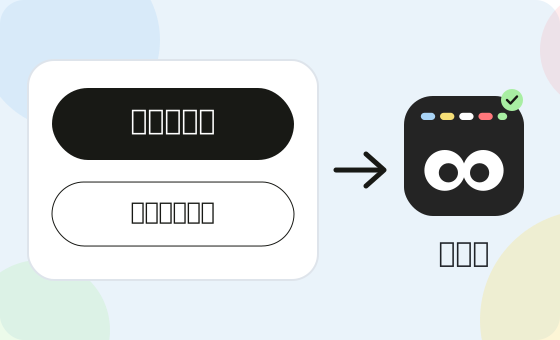
选你的系统,复制一行命令,或下载安装包。
-
首次打开,按提示授权
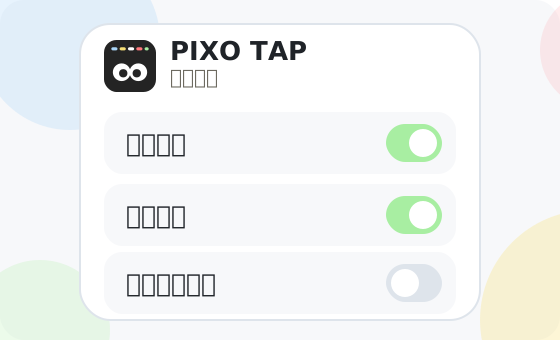
macOS 需要“屏幕录制”,建议同时开启“辅助功能”;相机可选。权限随时可在系统设置里关闭。
-
开始工作,离开前记下断点
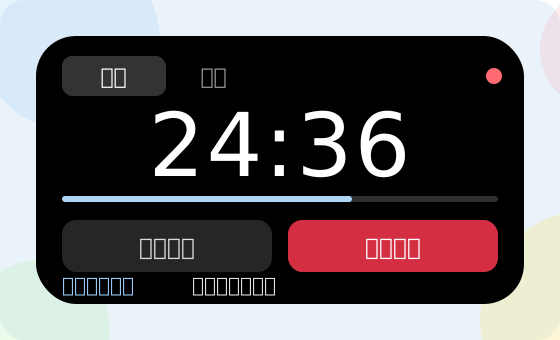
在灵动岛(或工作台)选好项目,点“开始”。要离开时点“记下断点”。只有你点击开始后才会记录。
-
回来时,一眼接回进度
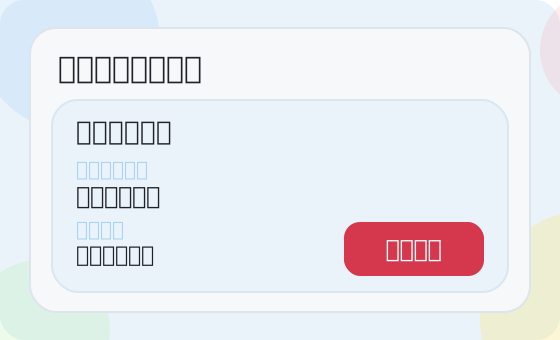
打开同一个项目,会看到上次停在哪里、这次先做什么。
-
(可选)登录账号
不登录也能使用。需要管理设备与数据时,在设置里点“登录”,在浏览器中完成授权。前往账号页
常见问题
我需要账号吗?
不需要。账号是可选的,只支持邮箱加密码登录,用于管理资料、已授权设备、同意设置、数据导出与注销。
数据保存在哪里?会上传吗?
默认只保存在你的设备上:macOS 在 ~/Library/Application Support/PixoTap,Windows 在 %LocalAppData%\PixoTap,Linux 在 ~/.local/share/PixoTap。截图原图、照片、原文件内容和剪贴板正文不会上传。详见隐私政策。
AI 功能需要什么?
需要你自己的 DeepSeek API 密钥。没有密钥或断网时,仍会生成本地交接摘要,联网后继续分析。配置密钥后还可使用“聊一聊”多会话智能伙伴 Agent(支持独立对话小窗口与工作台展开双栏会话列表、自动注入项目恢复摘要与暂放区文件清单,并内置 read / grep / search / web_search / edit / write / shell 工具按需本机检索与执行)。
怎么卸载?
macOS:把应用拖进废纸篓。Windows:在“设置 > 应用”中卸载。Linux:运行高级里的卸载命令。卸载不会删除你的数据目录。
怎么停止记录?
点“记下断点”即可;隐藏入口或退出程序也会停止记录。
高级
校验下载文件(SHA-256)
下载页每个安装包下的“SHA-256”给出校验值,下载后在终端比对:
shasum -a 256 <文件>                       # macOS
sha256sum <文件>                           # Linux
Get-FileHash -Algorithm SHA256 <文件>      # Windows(PowerShell)
Linux
系统要求:Ubuntu 24.04 或更新(x86_64)。一行命令不需要 root,安装到 ~/.local,重复运行即升级。需要的运行库:
sudo apt install libwebkit2gtk-4.1-0 libayatana-appindicator3-1 tesseract-ocr tesseract-ocr-eng tesseract-ocr-chi-sim卸载(保留 ~/.local/share/PixoTap 中的数据):
curl -fsSL https://pixotap.plutokeating.beer/install | bash -s -- --uninstall保存 AI 密钥需要系统的 Secret Service(gnome-keyring 或 KWallet)。
Windows
推荐 setup.exe:每用户安装,不需要管理员权限。使用 ZIP 时请完整解压后运行 PixoTap.exe。
Documentation
Five steps; a few minutes is enough.
-
Install
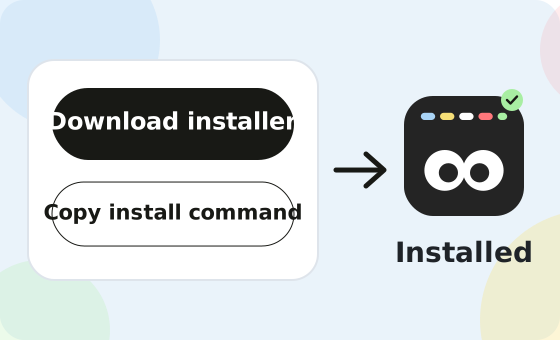
Pick your system, then copy one command or download the installer.
Show command
curl -fsSL https://pixotap.plutokeating.beer/install | bashIf the first launch is blocked: right-click the app and choose Open.
Show command
irm https://pixotap.plutokeating.beer/install.ps1 | iexIf the first run is blocked: click More info, then Run anyway.
Show command
curl -fsSL https://pixotap.plutokeating.beer/install | bashNo root needed; run it again to upgrade.
-
Open it and grant access
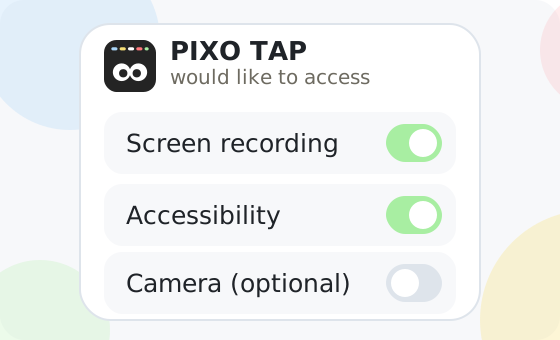
macOS needs Screen Recording and works best with Accessibility; the camera is optional. You can turn any permission off in system settings at any time.
-
Start working, mark a checkpoint when you leave
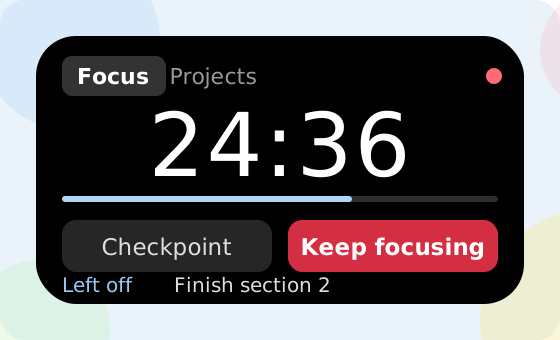
Pick a project in the island (or the workbench) and press Start. When you step away, press Mark checkpoint. Nothing is recorded until you press Start.
-
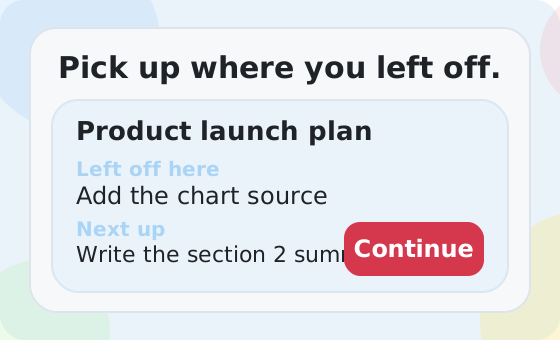
Come back and pick up your progress
Open the same project to see where you left off and what to do next.
-
(Optional) Sign in
Everything works without an account. To manage devices and data, choose Sign in in Settings and finish authorization in your browser. Go to the account page

FAQ
Do I need an account?
No. Accounts are optional, use email and password only, and are for managing your profile, authorized devices, consents, data export and deletion.
Where is my data stored? Is it uploaded?
On your device by default: ~/Library/Application Support/PixoTap on macOS, %LocalAppData%\PixoTap on Windows, ~/.local/share/PixoTap on Linux. Original screenshots, photos, file contents and clipboard text are never uploaded. See the Privacy Policy.
What does AI need?
Your own DeepSeek API key. Without a key, or offline, a local hand-off summary is still produced and analysis continues once you are online. With a key configured, you can also use the multi-session AI companion Agent in a standalone compact window or expanded dual-column workbench view (automatically syncing project summaries and shelf file metadata, with built-in read / grep / search / web_search / edit / write / shell tools).
How do I uninstall?
macOS: drag the app to the Trash. Windows: remove it in Settings > Apps. Linux: run the uninstall command under Advanced. Your data folder is kept.
How do I stop recording?
Press Mark checkpoint; hiding the entry point or quitting the app also stops recording.
Advanced
Verify a download (SHA-256)
Each installer on the download page has a SHA-256 value under it. After downloading, compare it in a terminal:
shasum -a 256 <file>                       # macOS
sha256sum <file>                           # Linux
Get-FileHash -Algorithm SHA256 <file>      # Windows (PowerShell)
Linux
Requires Ubuntu 24.04 or newer (x86_64). The one-line command needs no root, installs under ~/.local, and running it again upgrades. Runtime libraries:
sudo apt install libwebkit2gtk-4.1-0 libayatana-appindicator3-1 tesseract-ocr tesseract-ocr-eng tesseract-ocr-chi-simUninstall (your data in ~/.local/share/PixoTap is kept):
curl -fsSL https://pixotap.plutokeating.beer/install | bash -s -- --uninstallSaving an AI key needs the system Secret Service (gnome-keyring or KWallet).
Windows
Prefer setup.exe: per-user install, no administrator rights. With the ZIP, extract everything and run PixoTap.exe.